

Category: Guides
MCP Time Tracking: Log Hours Without Leaving Your Work
MCP time tracking lets you start, stop, and fix time entries from Claude or another AI client as you work, without opening a separate timer app.
By Baptiste Dulac · Published November 2, 2026
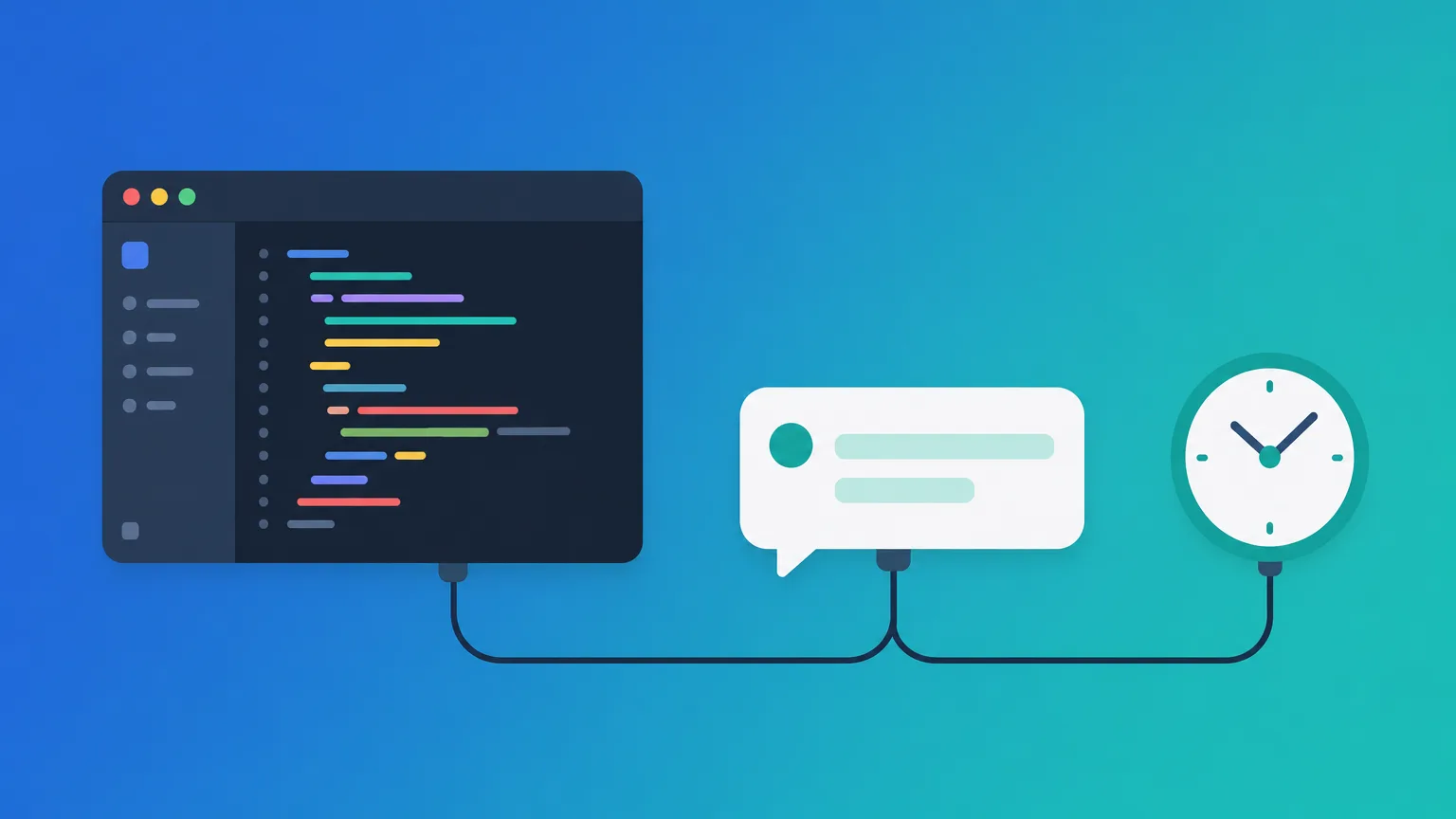
MCP time tracking means logging your hours by asking an AI client such as Claude or Cursor, which talks to your time tracker through an MCP server. You connect once, then say "start a timer on project X" or "log 2 hours yesterday" without leaving the window you work in.
If most of your billable work happens in an editor or a chat with an AI assistant, the timer app is one more window to switch to. Every switch is a chance to forget, and a forgotten start usually turns into a guessed entry on Friday. This guide explains what MCP is, how the connection works today, and a simple routine to keep your timesheet accurate from inside your tools.
Why a separate timer app breaks your focus
A separate timer app breaks focus because starting, stopping, and correcting time each require leaving the task you are paid to do. The cost is not the few seconds of the click. It is the small decision to interrupt yourself, which is easy to postpone and then forget.
The result is a familiar pattern. You start work in your editor, remember the timer twenty minutes later, and backdate it from memory. You switch client mid-afternoon and the old timer keeps running. At the end of the week you rebuild entries from commits, messages, and calendar invites. Our guide to tracking time across several clients in one day covers the habits that limit this, but every habit is easier when the timer lives where you already are.
In my consulting work, the entries I had to rebuild were almost always the ones I meant to start "right after this one thing".
What an MCP server is, in plain words
An MCP server is a small service that lets an AI client read and change data in another app through a list of named actions, such as "start timer" or "list time entries". MCP stands for Model Context Protocol, an open standard described on the official MCP site.
Without MCP, an AI assistant can only talk about your time. With an MCP server connected, it can act on it: the client sees the available actions, picks the right one for your request, and sends it to the app. The app still decides who you are and what you may change. You stay in charge of what the client is allowed to run, because many MCP clients can show each tool call before it runs.
For time tracking, that means the request "I just spent 40 minutes on the Acme landing page" can become a real time entry on the right client and project, written in the same conversation where the work happened.

How to connect an MCP time tracking server
Connecting takes a few minutes and depends on whether your client supports one-click sign-in (OAuth) or needs a personal access token. Portime's MCP guide documents both methods as they work today.
For Grok Bot and Cursor, Portime uses one-click sign-in, so you never paste a key:
- Add the server. In Cursor, add the Portime MCP server with the URL
https://app.getportime.com/api/mcp. In Grok Bot, add a custom connector with the same URL. - Sign in on Portime. The client opens Portime's sign-in page. You can use Google, Microsoft, or email. A new account finishes the normal Starter trial checkout first.
- Pick the organization. Choose the Portime organization the client should work in.
- Allow access. Approve read and write access to time data. The client can now call Portime's tools.
- Test with one request. Ask "Give me this week's time summary" and check that the numbers match what you see in the app.
Claude and other clients that do not use one-click sign-in still work, with a personal access token as the fallback. Create the token in Portime under Account, Security, then Personal access tokens, copy it once, and add it to the client's connector settings with the same URL. The client sends it in an x-api-key header or as Authorization: Bearer. Never commit a token to a repository or paste it into a shared document.
MCP uses the same paid-organization access as the rest of Portime: it needs an active Starter or Pro plan, including the Starter trial, as listed on the Portime FAQ.
Start, stop, and correct time entries from your AI client
Once connected, you log time by describing what you did in plain language, and the client turns it into the matching action. The table shows typical requests and what they do.
| You ask | What happens |
|---|---|
| "Start a timer on the Acme website project" | A timer starts on that client and project |
| "Pause my timer, I have a call" | The running timer pauses until you resume it |
| "Stop the timer and save it as: fixed checkout validation bug" | The timer stops and becomes a time entry with that description |
| "Log 2 hours yesterday on project X" | A time entry is created for the past day |
| "Change this morning's entry to non-billable" | The existing entry is updated |
| "Give me this week's time summary" | You get your tracked hours without opening a report |
Example: you work in Cursor from 9:00 to 11:30 on two client projects. You ask the client to start a timer on the first project, switch it at 10:15 with one sentence, and stop it at 11:30 with a short description. Two clean entries exist before lunch, and you never left the editor.
Corrections matter as much as starts. If you forgot to stop a timer, ask for the entry to be shortened rather than leaving it for the weekly review. Good descriptions still count: our guide on writing time entry descriptions clients understand applies whether you type the entry or dictate it.
Keep AI-logged time accurate
AI-logged time stays accurate when you confirm each write, name the client and project explicitly, and review the week once. The client does the typing, but you remain responsible for what lands in a client report.
- Approve writes. Portime runs a write as soon as the client calls the tool. Keep your client's approval prompt on for creating, editing, or deleting entries.
- Be specific. "Log an hour" is ambiguous. "Log 1 hour today on Acme, website project, billable" is not.
- Check the billable flag. Say it in the request when it matters, and fix it right away when it is wrong.
- Review weekly. A 15-minute weekly time review catches the odd entry on the wrong project before it reaches a monthly report.
How this works in Portime
Portime's MCP server connects your AI client to the same workspace as the in-app assistant: your clients, projects, tasks, timers, and time entries. You can start, pause, and stop timers, log and edit entries, ask for summaries, and list your meeting recaps, all from the client. The features page describes the time tracking, projects, and reporting those actions work on. Portime does not create or send invoices. It gives you reports you can use with your own invoicing tool.
Want to try this in Portime? Start the 7-day free trial on the Starter plan (pricing).
FAQ
Do I need to be a developer to connect an MCP server?+
No. For Grok Bot and Cursor, you add a URL, sign in on Portime, and pick an organization. Other clients ask you to paste the same URL and a personal access token in their settings. No code is involved in either case.
Can my AI client change or delete time entries without asking me?+
Portime runs a write as soon as the client calls the tool, so the confirmation step belongs to your AI client. Many clients can show the tool call and ask for approval before running it. Keep that approval on for anything that creates, edits, or deletes time.
Which Portime plans include MCP access?+
MCP needs an active paid organization, which means Starter or Pro, including the Starter trial. The subscription and your membership are checked again on every request. If the plan lapses, MCP calls stop working until it is active again.
Is a personal access token less safe than OAuth sign-in?+
A token works like a password for the API, so treat it as one: store it only in the client settings, never in a shared file or a repository. OAuth avoids copying a secret at all, which is why Portime uses it where the client supports it. If a token leaks, revoke it and create a new one.
Related articles
Guides
Tracking Time When You Juggle Several Clients in One Day
How to capture accurate hours when your day is split between clients, interruptions, and quick favors, without turning time tracking into a second job.
Guides
How to Write Time Entry Descriptions Clients Actually Understand
A short, specific description turns a line of hours into a line of value. Here is a simple formula for writing entries that hold up on a client report.
Guides
The 15-Minute Weekly Time Review That Saves Your Month-End
A short Friday routine to close gaps in your timesheet, sort stray entries, and catch budget problems while they are still small, so your monthly report almost writes itself.