

Category: Guides
Turn Meeting Notes Into Tasks and Logged Time the Same Day
Turn meeting notes into tasks before the day ends: capture actions during the call, confirm them right after, and log the meeting on the right client.
By Baptiste Dulac · Published October 26, 2026
To turn meeting notes into tasks, capture action items during the call, confirm each one with an owner and a due date right after it ends, and log the meeting as a time entry on the right client the same day. Doing all three before you close your laptop keeps nothing in your head overnight.
Most client calls end with a few promises: send the revised proposal, check the analytics setup, ask the developer about the API limit. In the moment they feel impossible to forget. By the next morning, two of them live only in a notebook and the call itself never made it into the timesheet. This guide gives you a short routine that closes that gap.
Why follow-ups and meeting time slip away
Meeting follow-ups get lost because the call ends and the next task starts before anyone turns notes into actions. Notes taken during a conversation are written for the person taking them: half sentences, arrows, a name circled twice. They are not yet tasks, and nobody is assigned to read them again.
The time spent in the meeting slips for a similar reason. If you did not start a timer before the call, logging it means reconstructing the start and end later, and later often becomes never. On a day split between several clients, a missing meeting is one of the easiest hours to lose, as covered in our guide to tracking time across several clients in one day.
In my consulting work, the follow-ups that slipped were usually the ones I meant to write down properly later.
How to turn meeting notes into tasks, step by step
A meeting action item is a task that someone agreed to do during the call, with a clear result and a date. The routine below turns raw notes into those tasks and records the meeting time, in about ten minutes.
- Mark actions while you listen. Start each action in your notes with a symbol or the word "Action" so you can find them in seconds. Do not try to write the final task yet.
- Confirm the list before you hang up. Spend the last two minutes reading the actions back: what, who, and by when. This is where vague items become clear ones.
- Create the tasks right after the call. File each task under the right client and project, with a short title, a due date, and a priority if it matters.
- Drop what is not yours. Items owned by the client go into your follow-up email, not your task list.
- Log the meeting time. Add a time entry on the client and project the meeting was about, with the real duration and a short description.
- Send the recap email. List the decisions and actions in a few lines so everyone leaves with the same version.
Example: a 45-minute call produces 7 raw notes. 4 become your tasks, 2 belong to the client and go into the recap email, and 1 was just context. You log 45 minutes on the client's project with a one-line description.
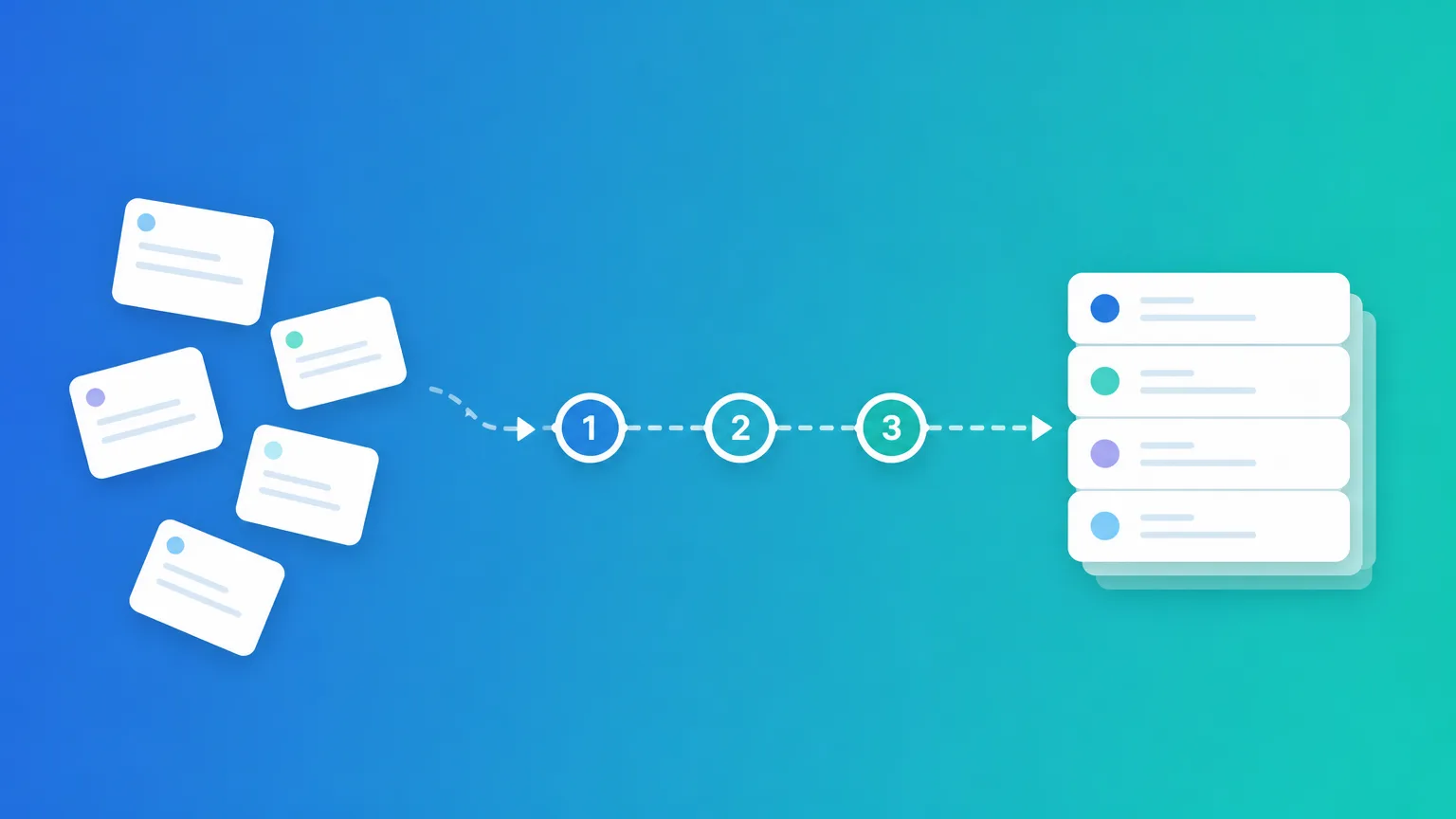
What a good task from a meeting looks like
A good task from a meeting starts with a verb, names the deliverable, and has a date. The table shows how typical notes become tasks you can act on without rereading the whole conversation.
| Raw note | Task |
|---|---|
| "proposal, pricing?" | Send revised proposal with two pricing options by Thursday |
| "GA weird" | Check why analytics shows duplicate sessions on the checkout page |
| "ask Tom re API" | Email Tom to confirm the API rate limit before the next sprint |
| "maybe newsletter" | No task: idea parked, mention in the recap email |
Two checks help here. First, if a task cannot be done in one sitting, split it or turn it into a small project. Second, if nobody can say when it is due, it is probably not a commitment yet, so leave it in the recap email as an open point.
Logging meeting time on the right client
Meeting time should be logged on the client and project the conversation was about, with a description the client can understand. Calls often feel like overhead, but for many consultants they are a real part of the delivered work and deserve the same care as any other entry.
Three details make the entry useful later:
- The right project. If the call covered one project, log it there. If it covered several, split the time or note the second topic in the description.
- The billable flag. Apply the rule from your agreement. Status calls on an active project are often billable, sales calls usually are not.
- A clear description. "Call" says nothing. "Weekly call: agreed launch checklist, moved review to Thursday" says what the client got. Our guide to writing time entry descriptions clients understand has a simple formula for this.
These entries matter most at the end of the month. When meetings are logged with clear descriptions, the monthly report shows the conversations that shaped the work, which is part of what makes monthly reporting a client-retention tool.
How this works in Portime
Portime keeps tasks and time entries on the same clients and projects, so the follow-ups and the meeting time end up in one place. Tasks have priorities and due dates, and time can be tracked with a timer or added manually, as described on the features page.
For calls on a Mac, Portime Recap is a small menu-bar app. You listen, you Stop, then you confirm the proposed tasks in Portime. Nothing is created until you accept. If no timer was running, you can accept the meeting duration as a time entry. Only you can see your recordings, and other people in your organization do not see them. According to the FAQ, Recap is included on Starter and Pro, including the Starter trial, and needs macOS 13 or later.
Want to try this in Portime? Start the 7-day free trial on the Starter plan (pricing).
FAQ
Should client meetings be billable?+
It depends on what you agreed with the client. Many consultants bill working sessions and status calls on an active project, and keep sales calls or first discovery calls non-billable. Whatever you choose, decide the rule once, write it in your proposal, and apply the billable flag the same way every time.
How do I describe a meeting in a time entry?+
Name the meeting, the topic, and the result, for example: Weekly call with the marketing team, agreed the launch checklist and moved the review to Thursday. Avoid single words like meeting or call, because the client cannot tell what they paid for. The description should still make sense when it appears in a monthly report weeks later.
What if one call covers several projects for the same client?+
Split the time if the projects are billed or reported separately, using your best estimate of how the call was divided. If the split is small or unclear, log the whole call on the main project and mention the other topic in the description. Create each follow-up task under the project it actually belongs to.
Do I need to record a meeting to turn it into tasks?+
No. Short handwritten or typed notes with an action list are enough if you review them right after the call. A recording or a listening tool mainly helps when you are leading the conversation and cannot take notes at the same time. Always tell participants if you record, and follow your client's rules.
Is Portime Recap available on Windows?+
Not yet. Recap is a macOS menu-bar app and needs macOS 13 or later. You can still create tasks and log meeting time in Portime from any browser.
Related articles
Guides
MCP Time Tracking: Log Hours Without Leaving Your Work
MCP time tracking lets you start, stop, and fix time entries from Claude or another AI client as you work, without opening a separate timer app.
Guides
Time tracking alternatives for consultants (2026): 6 tools compared
Toggl Track, Clockify, Harvest, Timely, Kimai and Portime compared for consultants: who each suits, official pricing and limits. Written by Portime. Checked October 2026.
Guides
The 15-Minute Weekly Time Review That Saves Your Month-End
A short Friday routine to close gaps in your timesheet, sort stray entries, and catch budget problems while they are still small, so your monthly report almost writes itself.